
Register Custom Thumbnail Sizes in WordPress
This guide will allow you to register custom sizes to your WordPress. When you upload a new image to your media library, WordPress will automatically resize and/or crop the image to the specified sizes. In this example, we'll register a couple of resolutions: 512px x 384px and 640px x 480px. We'll also enable hard crop, so the images will be cropped.
Prerequisite
- You need to have a child theme. If you don't have one, there are tons of free plugins available at the WordPress Plugin Repository That can help you create a child theme.
Steps to register a custom size in WordPress:
- Edit
functions.phpon your child theme. You can edit in one of the following ways:- In the WordPress Dashboard, go to
Appearance>Theme File Editorand selectfunctions.php.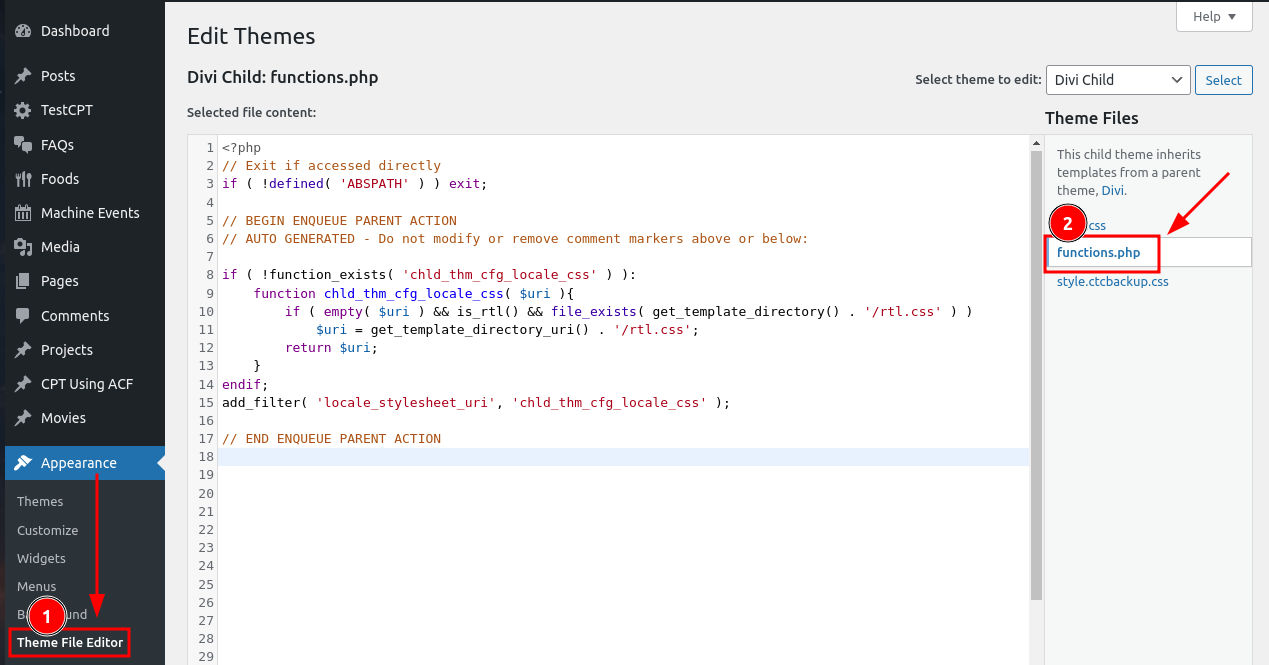
- You can edit the file directly either by using FTP, or your hosting panel's web file manager. Either way, you should take a backup before making any changes to the file.
- In the WordPress Dashboard, go to
- Add the following code at the end of the file:

// Add new image sizes:
add_image_size( 'thumb-512x384', 512, 384, true );
add_image_size( 'thumb-640x480', 640, 480, true );
// Register the sizes:
add_filter( 'image_size_names_choose', 'my_custom_image_sizes' );
function my_custom_image_sizes( $sizes ) {
    return array_merge( $sizes, array(
        'thumb-512x384' => __( 'Thumbnail 512x384px' ),
        'thumb-640x480' => __( 'Thumbnail 640x480px' ),
    ) );
}
Understanding and Customizing the Code
In the line add_image_size( 'thumb-512x384', 512, 384, true );, we are calling the add_image_size function of WordPress to add a custom thumbnail size.
thumb-512x384is the name of the thumbnail size. You can name it anything you want, just make sure there are no spaces or special characters other than-and_in the name.- Arguments
512and384define the width and height of the thumbnail size in pixel value. You can customize the values as you want. trueis a boolean value, that specifies whether the images should be cropped to preserve the aspect ratio of the resolution provided. This is called a hard crop. By default, it's set tofalse, so if you don't want the images to crop, you can simply remove the argument and the line can look like this:add_image_size( 'thumb-512x384', 512, 384 );. We will discuss customizing the hard crop position in a little bit.
For the line 'thumb-512x384' => __( 'Thumbnail 512x384px' ),, we are registering the sizes.
thumb-512x384is the size we added earlier andThumbnail 512x384pxis the label that will be displayed in WordPress: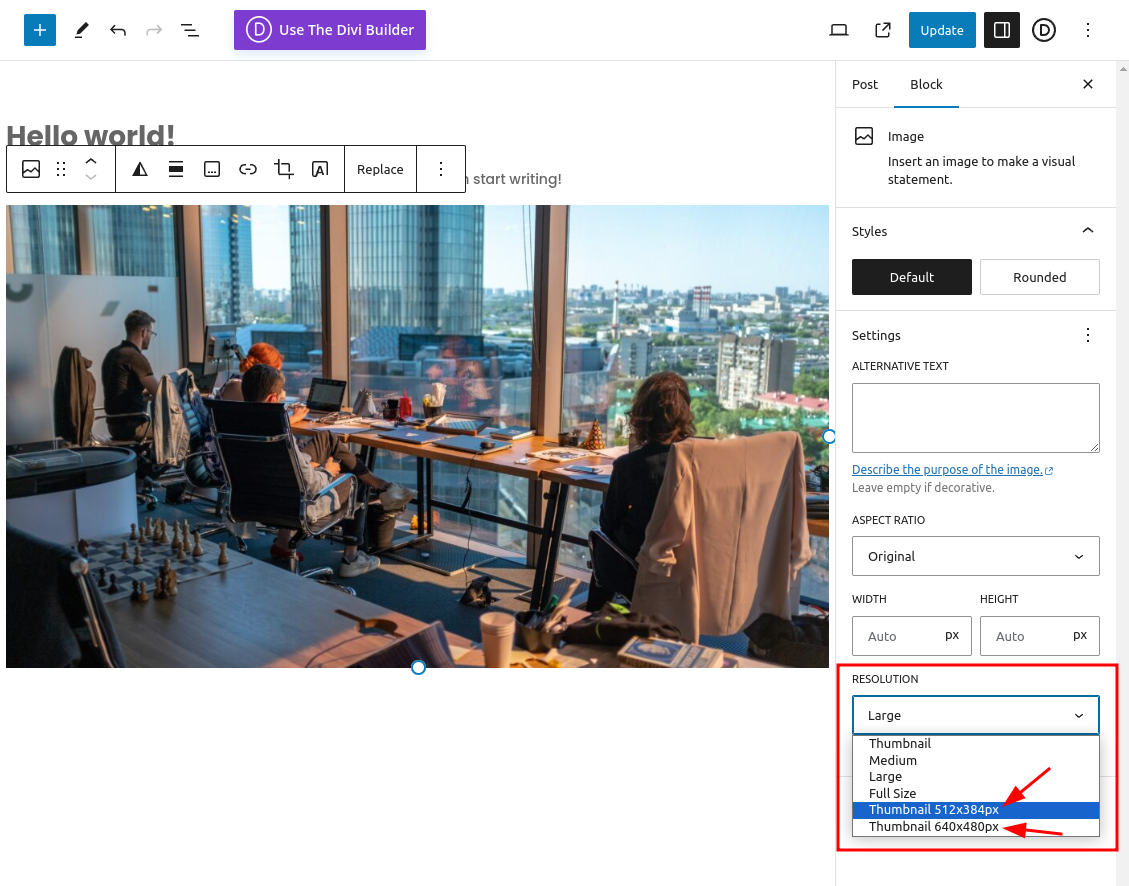 You can provide a suitable title and can use spaces in the label.

Hard Crop Positioning
You can set the position of Hard Crop like this:
add_image_size( 'thumb-512x384', 512, 384, array( 'left', 'top' ) );
In this example, we are cropping from the top left corner. the first value in the array is the x-axis (horizontal) crop position, the second is the y-axis (vertical) crop position. The supported values for the X and Y axes are:
- X:
left,center, orright. - Y:
top,center, orbottom.
This way you can set 9 crop positions. When you don't specify a crop position array, it defaults to center.
Re-generating existing images
Once you add and register custom thumbnail sizes in your child theme's functions.php, you need to regenerate thumbnails for the existing images in the media library so that those images will be available for the already uploaded images. You can either do it using a plugin or by using WP-CLI in the command line:
1. Use a plugin to regenerate the thumbnails
You can find many plugins in the WordPress plugin repository that'll let you regenerate thumbnails. You can try the plugin Regenerate Thumbnails. I've used it before and it works well.
2. Use WP-CLI to regenerate the thumbnails
If you love the command line like me, then this method is for you. You can use WP-CLI to regenerate the thumbnails of the existing images. All you have to do is cd to the WordPress root directory and enter this command:
wp media regenerate
WP CLI also lets you generate only the missing images, specify the attachment ID of the images to only regenerate specific images, and last but not the list, only regenerate specific thumbnail sizes. You can find all the details here.
Using Custom Thumbnail Sizes With Divi Engine Plugin Modules
Using custom thumbnail sizes is a great method to be used with our Divi Machine Thumbnail & ACF Item modules and the LL Thumbnail module from Divi BodyCommerce. You can also use it with the Thumbnail module that comes with Divi Ajax Filter.
Custom thumbnail sizes with hard crop mode are very useful to be used inside Loop Layouts if you want all the images in an Archive Loop to look the same:
- Thumbnail and LL Thumbnail: You can set a custom registered size in the
Thumbnail Image Sizefield: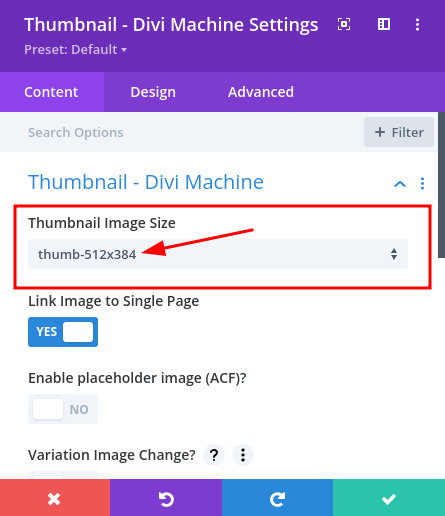
- ACF Item module: When using an Image ACF Image field, you can set a custom thumbnail size in the
ACF Itemmodule settings >Image, file, url, phone, email & Link Settingssection >Image Onlytab: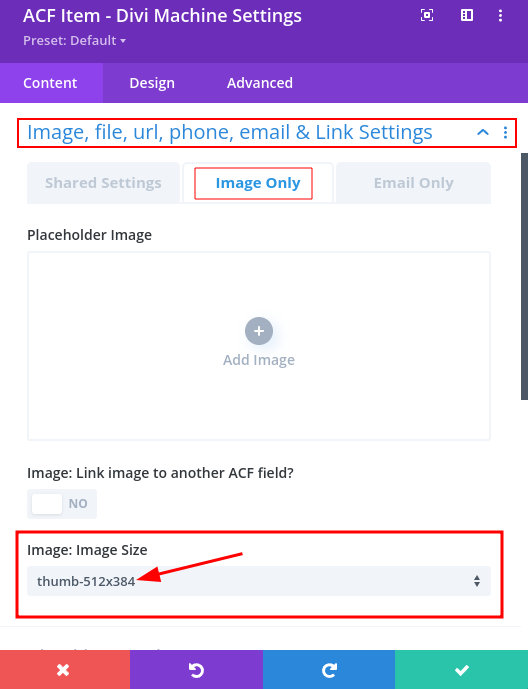


You can also register specific sizes to better optimize your pages. For example, you can have different sizes for different grid sizes as a 4-column grid takes half the size of a 2-column grid. You can also use them for better responsive optimizations using different sizes per device type (Use Divi's Visibility options).